Lyric Video Backgrounds: What Works Behind the Words
How to pick a lyric video background that keeps text readable: contrast, motion, loops, free Pixabay and Pexels footage and its license, and cover art.
The background of a lyric video has a strange job. It has to set the mood for three minutes, and it has to stay out of the way the whole time. The words are the point. A background that would make a great music video can make a bad lyric video, because the eye goes to it instead of the line being sung.
I've ruined a few videos this way: a gorgeous clip of sun through trees, and half the chorus unreadable because the bright patches landed right on the words. So this guide starts with what makes a background work behind text, then covers where to get free footage legally, and how our tool handles it.
What makes a background work behind text
Contrast is most of it. Lyric videos almost always use white or near-white text, so the background needs to be darker than the text everywhere the text can appear. Not on average. Everywhere. A clip that's dark overall but has a bright window in the middle will swallow any word that lands on the window.
If you love a bright clip, darken it. A black layer at 40 to 50 percent opacity over the footage fixes most problems and still lets the picture through. A soft shadow behind the text helps on top of that.
Calm motion beats busy motion. Slow clouds, rain on glass, city lights out of focus, waves at a distance: these move enough to feel alive without pulling the eye. Fast cuts, handheld shake, crowds and anything with readable text (signs, screens, shop fronts) compete with the lyrics. Faces are the worst offender. People look at faces before they read words, every time.
Out of focus is your friend. Bokeh shots, the ones with soft blobs of light, are popular in lyric videos for a reason. There's nothing sharp for the eye to land on except the text.
Loops have to hide the seam. Most free stock clips are 10 to 30 seconds, and a song is three minutes. If you loop a clip, pick one where the first and last frames are similar (clouds, water, rain, slow light), so the jump isn't obvious. A clip of a car driving past will jump visibly every time it restarts.
One mood for the whole song. You can change the background every section, but keep the color temperature and pace consistent. Night city, then rain, then neon is one mood. Night city, then a sunny meadow, then a nightclub is three videos.
Still image, loop or matched footage?
There are three common approaches, and each fits a different situation.
A still image, usually the cover art. This is what a lot of official lyric videos do. It ties the video to the release, it looks the same on Spotify, YouTube and Instagram, and it never fights the text if you pick a calm crop. The downside is that a fully static frame for three minutes can feel dead, so a slow zoom or drift helps.
One looping clip for the whole song. Simple and moody. Good for lo-fi, ambient and slow songs. Gets boring on a song that builds.
Different footage per section, picked to match what's being sung. The verse about driving at night gets a road, the chorus about the ocean gets waves. This is the most work by hand, and it's what makes a lyric video feel made for the song rather than dropped on a template.
Free footage and what the licenses allow
The two big free sources are Pixabay and Pexels. I read both license pages in November 2026. Summaries below; read the full pages yourself before relying on them, since terms change.
Pixabay. The Pixabay Content License lets you use content for free, and modify or adapt it into new works. Attribution isn't required, though credit is appreciated. You can't sell or distribute the content on its own without creative changes, can't use content showing recognisable trademarks, logos or brands commercially for goods or services, and can't use it in immoral, illegal, misleading or deceptive ways, with special care around recognisable people. Pixabay also says some content may carry other rights, such as trademarks or privacy rights, and that checking whether you need third-party consent is on you.
Pexels. The Pexels license says all photos and videos can be downloaded and used for free, attribution isn't required, and you can modify them. Not allowed: showing identifiable people in a bad light or offensively, selling unaltered copies, implying that people or brands in the footage endorse your product, redistributing the files on other stock or wallpaper sites, and using them as part of a trademark or business name.
For lyric videos, the practical points:
- Putting a clip under your lyrics and editing it into a video is the kind of creative use both licenses allow.
- Be careful with clips of identifiable people. A face under a lyric about cheating or drugs can portray that person in a bad light, which both licenses warn about. Landscapes, weather, lights and objects avoid the issue.
- Avoid clips with visible brands or logos.
- Credit the creator anyway. A line in your YouTube description costs nothing.
Many "free footage" sites and YouTube channels are not Pixabay or Pexels and have their own terms, some personal-use only. Check before you use them on a monetized channel.
How our tool picks footage from your lyrics
In our lyric video maker the matched-footage approach is automatic. When a new song finishes processing, the background is already laid out with stock video. You can preview it free; exporting with the footage is part of the HD export, and a free export uses a plain background.
Here's what it does:
- Splits the song into sections. Each section is roughly 8 to 16 seconds, and a pause of three seconds or more between lines always starts a new one. A long intro or outro gets its own section. Cuts are moved onto the nearest beat when the tool can detect one, so clip changes land on the music.
- Picks a search term for each section from its lyrics. The basic method is a word list of filmable things: "rain" becomes a rain-on-window search, "highway" becomes night driving, "ocean" becomes waves. Where a language model is set up, it reads each section's lyrics and suggests a short English search for a concrete scene, which helps with lyrics in other languages and with lines that are about a feeling rather than an object. It's told to keep one mood across the song and to avoid people's names, brands, text and logos. Sections with no visual words fall back to calm mood clips like light bokeh, clouds or neon.
- Searches free stock footage in the shape you picked. Clips come from Pixabay (or Pexels), with Pixabay's safe search on. Clips shorter than their section loop. If you switch from 16:9 to 9:16, the tool runs the same searches again for vertical clips so they fill the frame.
You can change any of it. Each section has its own row with the clip, the search term and a shuffle button. Change the search term to anything you like, or shuffle through the other results. The panel credits the creator of each clip and the source, linking to the clip's page.
Footage is drawn under a dark layer so white text stays readable, with a soft shadow behind the words, and with a slow push-in and drift so nothing sits completely still.
Scrub through once before you export. Matching by keyword gets the literal meaning and sometimes misses the tone. "Fire" in a love song might bring up a burning building.
Using your own image
If you'd rather use your cover art or a photo, click "Use a plain background" in the footage panel, then "Use my own image" in the Background section (PNG, JPEG or WebP). It's drawn with the same dimming layer and slow movement as footage, so a still doesn't feel frozen.
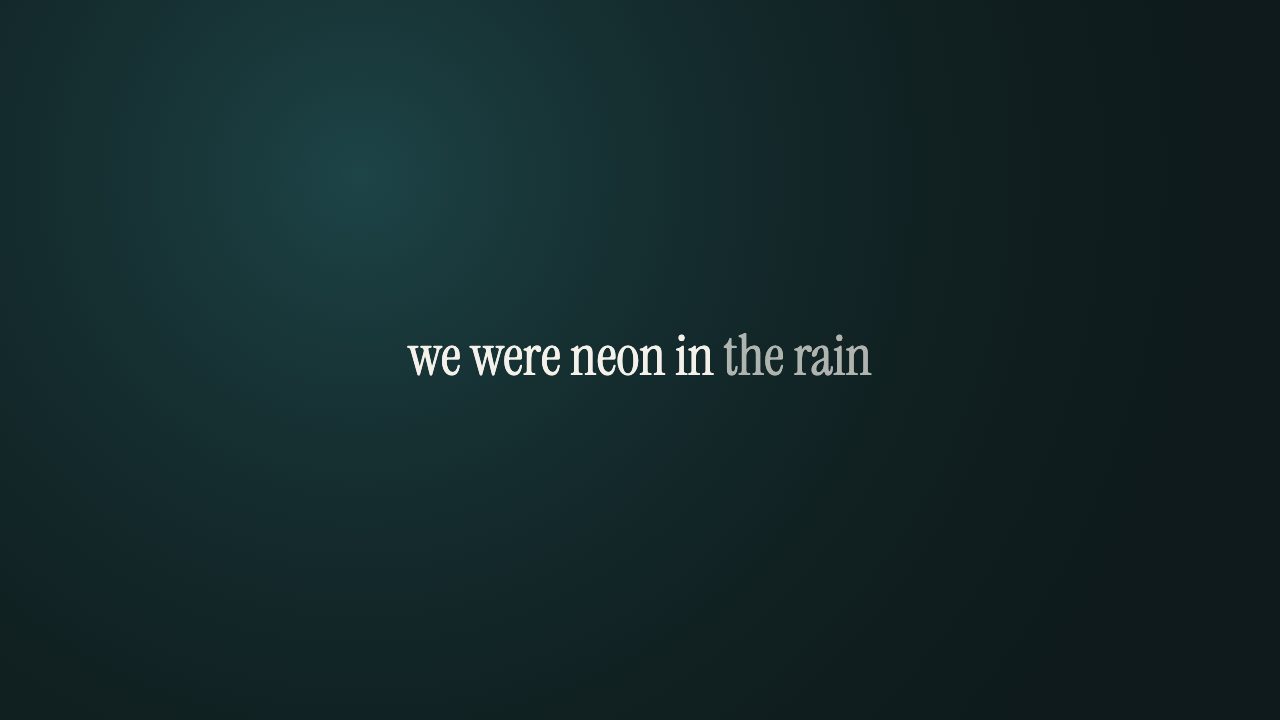
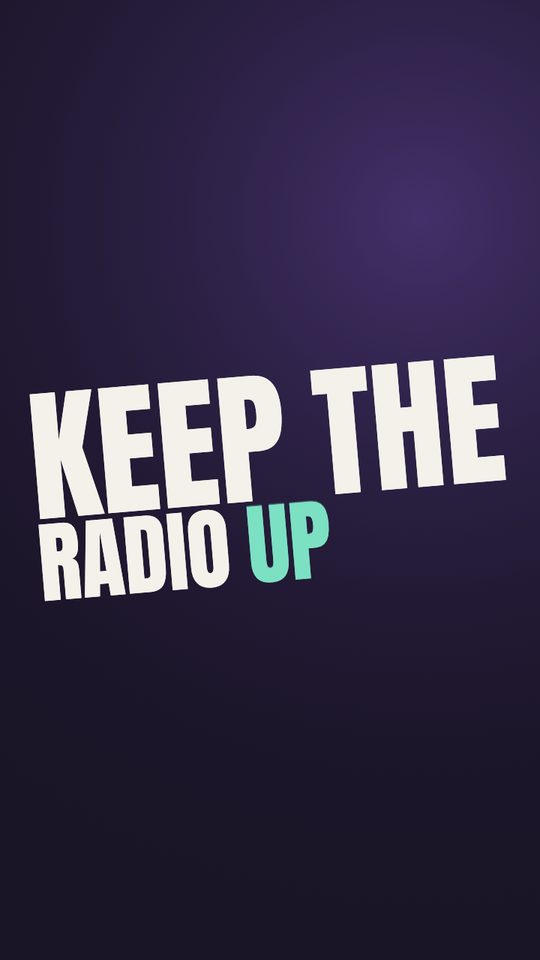
There are also four plain color backgrounds, violet, teal, ember and black, each with a soft glow that drifts slowly. Black is the safest for readability. Violet and teal give a bit more mood without adding anything to look at.
A few tips for cover art:
- Pick a crop where the area behind the text is calm. Our tool fills the frame, so a square cover in 16:9 loses its top and bottom.
- If the cover has the song title printed on it, that text will sit under your lyrics. Use a version without type if you have one.
- Very light covers still need the dim layer to read well. Check on a phone.
Quick checklist
- Text readable on every frame, on a phone, at arm's length.
- No faces, logos or readable signs competing with the words.
- Loops that don't visibly jump.
- One mood from start to finish.
- License checked for any footage you didn't shoot.
For the type itself, see the lyric video fonts guide. For the full process from audio to export, start with how to make a lyric video.