How to Make a Lyric Video (Step by Step, Free)
Make a lyric video from your song: prep the audio, get the word timing right, pick a style and shape, and export for YouTube, TikTok or Reels.
A lyric video is about the cheapest visual you can put next to a song that still feels like it belongs to the song. No camera, no actors, no location. You need the track, the words, and a way to make the words show up at the moment they are sung.
That last part is where most of the work used to go. I have spent whole evenings in a video editor nudging text layers by a few frames because a chorus came in early. The timing is the whole job. Fonts and backgrounds are the easy part, and people forgive a plain look much faster than they forgive a line that shows up after it was sung.
So this guide is mostly about timing, with the visual decisions after it.
Before you start: get the audio right
Use the final master, or at least the mix you are going to release. If you make the video from a rough mix and then change the arrangement, every timestamp after the change is wrong and you start over.
A few practical notes:
- File type. MP3, WAV and M4A all work in our lyric video maker. WAV is the safest if you have it. A decent MP3 is fine.
- Length. Our tool takes songs up to 10 minutes. If you have a long DJ mix or a live set, cut out the song you want first.
- Made the song in Suno? You can paste a public Suno song link instead of downloading the file. More on that in the guide to lyric videos for AI songs.
Also have the lyrics open in a text file. You don't strictly need them, but they make the next step much better.
Step 1: Upload the song and paste your lyrics
Drop the file into the tool. If you have the lyrics, paste them in the lyrics box before you start.
Here is why it matters. The AI (WhisperX, run after the vocals are separated from the instruments) can write down what it hears with no help at all. On a clear pop vocal it does a good job. On a dense rap verse, a heavily processed vocal, or a song with a lot of reverb, it will mishear some words. When you give it the real lyrics, it stops guessing at what was sung and only has to work out when each word lands. That is a much easier problem, and the result is far cleaner.
Format the lyrics the way you want them to appear on screen. One line per lyric line, a blank line between sections. Don't paste "[Chorus]" labels or "x2" shorthand. If the chorus repeats, write it out each time it is sung, because the tool can only align words that are actually in the text.
Step 2: Check the flagged words, not all of them
After processing you get every word with its own start and end time. Words the AI was unsure about are flagged.
This is the step people either skip or overdo. Skipping it means a wrong word ends up in your video forever. Overdoing it means watching the whole song three times checking words that were already right. Go to the flagged words, play each one, fix the spelling or drag the timing, and move on. Then watch the song once from start to finish to catch anything odd.
Things I always check by ear:
- The first word of each section. Pickups and breaths before a verse confuse alignment more than anything else.
- Ad-libs and backing vocals. Decide whether you want them on screen at all. Usually I delete them.
- Held notes. If a singer stretches "love" over two bars, make sure the word stays on screen for the whole note and doesn't vanish halfway.
If you want to get deeper into this part, the guide on how to sync lyrics to music covers timing in more detail, including what to do when you are working without any AI at all.
Step 3: Pick a style
Our tool has four styles. They do different jobs, so pick by the song, not by what looks coolest in the preview.
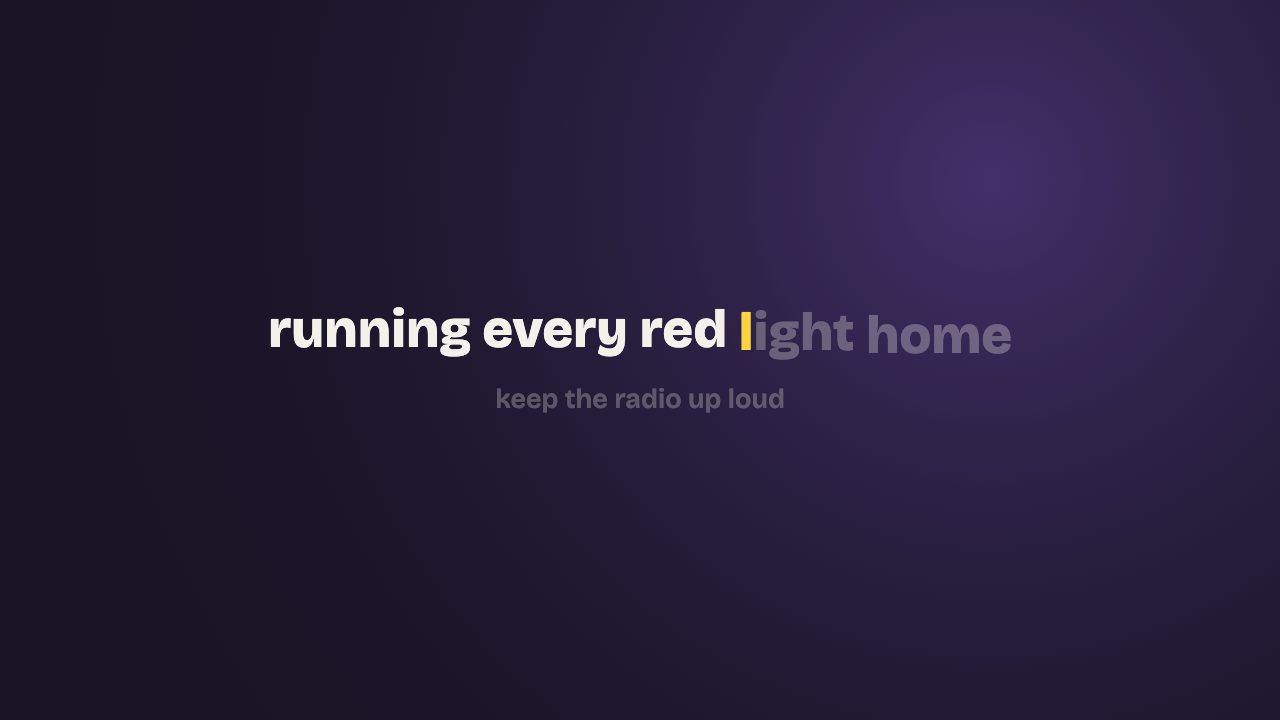
- Karaoke. Lines fill in as they are sung. Good for singalong songs and for anything where people will want to follow along word by word.
- Kinetic. Words pop in on the beat. Works for rap, dance music and anything with a strong rhythm, where the energy of the words matters more than reading full lines.
- Minimal. Calm, one line at a time. My default for ballads, acoustic songs and worship songs, where the words should be easy to read and nothing should distract from them.
- Stack. Lines build up on screen. Nice for verses that tell a story, since the viewer can see the previous line while the next one comes in.
You can also choose how words animate in: rise, pop, glow or typewriter. Typewriter is great for spoken-word sections and terrible for fast rap. Glow suits slow, atmospheric songs. Rise and pop are the safe all-rounders.
If the song has a clear beat, turn on beat sync and see whether you like it. On a four-on-the-floor dance track it makes the video feel alive. On a rubato piano ballad it just looks nervous, so leave it off.
Fonts deserve their own discussion. I wrote one in the lyric video fonts guide.
Step 4: Pick the shape for where it is going
Decide this before you get attached to a layout.
- 16:9 for YouTube and anywhere people watch on a laptop or TV.
- 9:16 for TikTok, Reels and YouTube Shorts.
- 1:1 for feed posts.
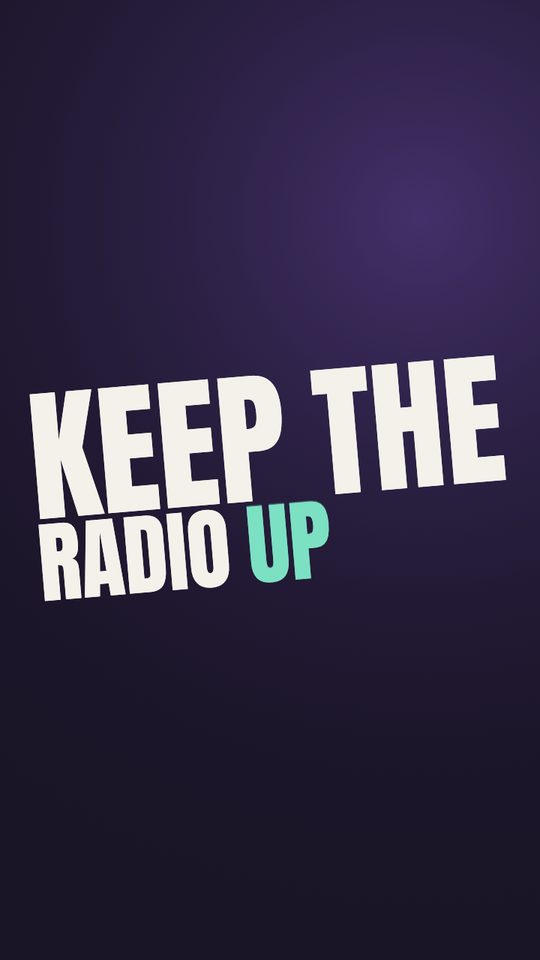
You can switch at any time and the word timing stays exactly where it was. What changes is how much text fits on a line. A long line that sits comfortably in 16:9 will break into two or three lines in 9:16. Watch the vertical version once before you export it, and if a line breaks badly, shorten it in the editor.
A tip from experience: for a single release, make the 16:9 full song for YouTube and then a 9:16 cut of just the hook for short-form. The short one is the one most people will actually see.
Step 5: Pick a background
You have two options.
The tool can pick stock footage for you based on the lyrics (the clips come from Pixabay; footage backgrounds are part of the HD export, and you can preview them free). A song about driving at night gets road and city-light footage, and so on. This is the fastest route and it often lands better than I expect. Scrub through and make sure no clip clashes with a line. A happy beach clip under a breakup lyric is the kind of thing that gets screenshot and laughed at.
Or upload your own image. Your cover art is the obvious choice and is what a lot of official lyric videos do anyway. It keeps the release looking consistent across platforms. If your cover is busy, the words can get hard to read, so prefer a calmer image or a darker crop.
Step 6: Export
The video renders right in your browser, so you don't wait in an upload queue. Keep the tab open until it finishes.
The free export is a 720p MP4 with a small watermark, for personal use. That is fine for testing a look, sending to bandmates, or posting a casual clip. For a real release, a monetized YouTube channel, or ads, you want the HD export: 1080p with no watermark, $9.99 per song, or $19.99 for a pack of three songs. Credits don't expire, and you need an account to buy them. There's a longer breakdown of what lyric videos cost in different tools in the lyric video cost guide.
Common mistakes
- Making the video from a mix that isn't final. Already said it, saying it again.
- Too much text on screen. If a line is longer than about a breath, split it. Viewers read slower than singers sing.
- Low contrast. White text on a bright sky clip is unreadable on a phone. Darken the background or pick another clip.
- Ignoring the first five seconds. On YouTube and TikTok, many people decide in the intro. If your song has a long intro, put the song title and artist on screen, or start the short-form cut at the first lyric.
- Uploading someone else's song and expecting to keep the ad money. If the song isn't yours, read the YouTube monetization guide first.
How long does this take?
With pasted lyrics and a clear vocal, the first draft is usually ready in a few minutes. Checking flagged words takes another five or ten. The part that eats time is the style decisions, and that is the fun part anyway.
If you want to try it on a song now, open the lyric video maker and drop the file in. The free export doesn't need an account.