How to Make a Lyric Video for YouTube: Specs and Upload
What to do after the video is made: YouTube specs, a Shorts cut, Content ID for your own songs vs covers, plus titles, thumbnails and chapters.
Making the lyric video is half the job. The other half is everything YouTube asks for once you hit upload: the right shape and resolution, a title people actually search for, a thumbnail, chapters, a vertical cut for Shorts, and, before any of that, the question of whether you're allowed to put this song on your channel at all.
The making part has its own guide: how to make a lyric video covers audio, timing, styles and export. This one picks up from there. The YouTube specs and rules below come from YouTube's Help Center, checked in November 2026.
First, whose song is it?
Settle this before you spend an evening on visuals.
Your own song, released through a distributor. The good case. One catch: if your distributor registered the track in Content ID, YouTube can claim your own lyric video, because it matches your own audio. That's annoying but fixable. Look in your distributor's dashboard for a way to clear your channel, or ask their support.
Someone else's song. If the label or publisher uses Content ID, expect a claim. Depending on the owner's settings, the video gets blocked, or it stays up and the ad money goes to them. The details, including YouTube's reused content policy for lyric channels, are in can you monetize lyric videos on YouTube. I won't repeat them here.
There's one Shorts rule worth knowing even for your own music. YouTube says a Short over one minute with an active copyright claim of any type is blocked globally: it can't be played, recommended or monetized until the claim is resolved. Shorts under a minute aren't affected by that rule. So if your distributor's Content ID is likely to catch your own upload, keep the Shorts cut under 60 seconds or clear your channel first.
The specs that matter
YouTube's player is built around 16:9, and the 1080p size for that shape is 1920×1080. YouTube asks you not to add black bars or padding to the file, because they get in the way of the player resizing your video.
For encoding, YouTube recommends an MP4 with H.264 video, AAC audio at 48 kHz, and uploading at the frame rate the video was made at. You mostly don't have to think about this if your tool exports a normal MP4. Our lyric video maker exports MP4 at 30 frames per second, H.264 in browsers that can encode it, with AAC audio. The HD export is 1080p with no watermark; the free one is 720p with a small watermark and is for personal use, so for a channel you plan to monetize, use HD (pricing is $9.99 a song or $19.99 for three).
Title and description limits, from YouTube's upload help: 100 characters for the title, 5,000 for the description.
Make two versions: full song and a Shorts cut
For a single, I make two files from the same project.
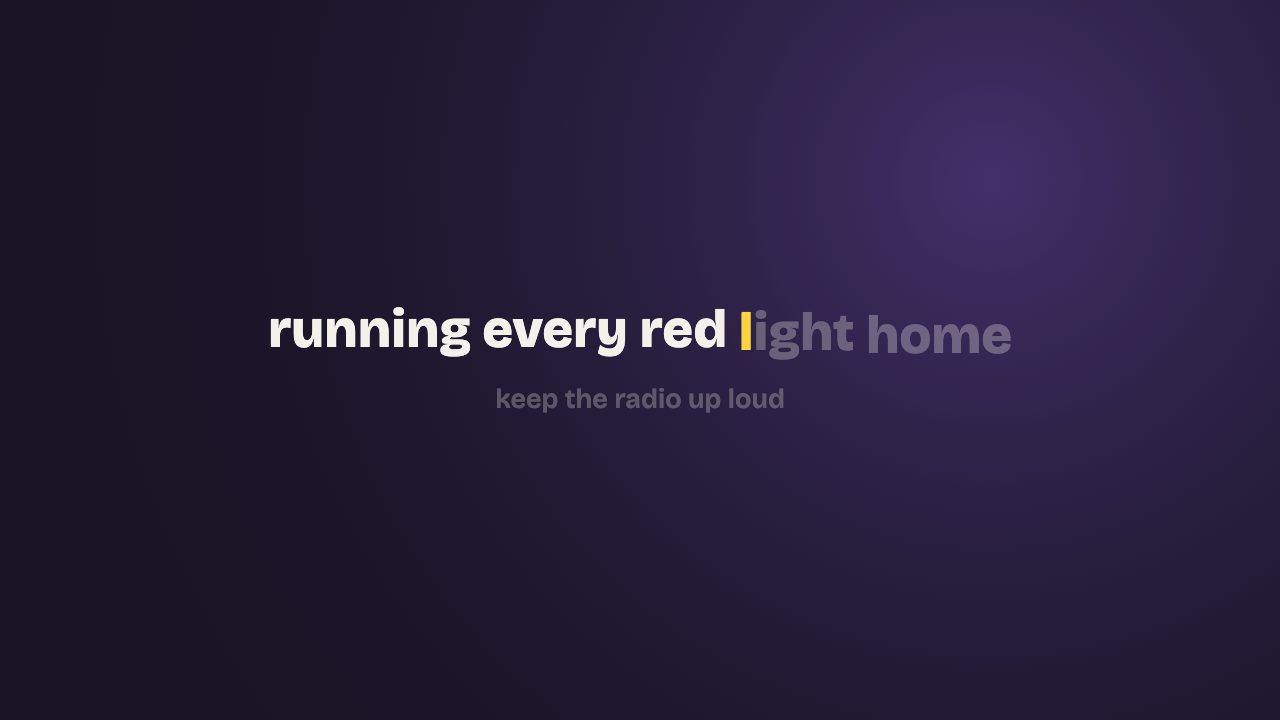
- The full song in 16:9 for the main upload. This is the one that turns up when someone searches the song name plus "lyrics".
- A vertical 9:16 cut of the hook for Shorts.
YouTube treats any video uploaded since October 15, 2024 with a square or vertical shape and a length of up to three minutes as a Short. Official Artist Channels and channels linked to a music content owner have a different cutoff date (December 8, 2025), so if you run an OAC, older vertical uploads over a minute stay long-form.
In practice, I'd keep the Shorts cut between 15 and 45 seconds: start on the first sung line of the chorus, not on the intro, and end right after the hook resolves. In our tool, switching the shape from 16:9 to 9:16 keeps every word's timing. Lines get narrower, though, so a lyric that fit on one line now wraps onto two or three. Watch it once before exporting and shorten anything that breaks badly. Also keep text away from the bottom and right edge, where the Shorts buttons and caption sit.
Title
People search lyric videos in a predictable way: song name, artist, and the word "lyrics". So use those words. The format most official uploads follow works fine:
Artist - Song Title (Official Lyric Video)
Keep the song title spelled exactly as it is on Spotify and Apple Music. If the song has a well-known line that people remember better than the title, put that line in the description, not the title.
For a Short, a title like Song Title - Artist #shorts is enough. The vertical shape and length are what make it a Short, so the hashtag isn't required, but it doesn't hurt.
Description
You get 5,000 characters. You don't need them all. What I put in, in this order:
- One line on what the song is, and when and where it's out.
- Streaming links.
- The full lyrics. This helps people who search a line they half-remember, and it's text YouTube can read.
- Credits: writers, producer, mix, master, and who made the video.
- Chapters (below).
Tags
Less important than people think. YouTube's own help page says tags "play a minimal role in your video's discovery" and are mainly useful when your content is commonly misspelled. Title, thumbnail and description matter more. So add a few: the artist name, the song title, and any common misspelling of either. YouTube also warns that stuffing tags into the description counts as spam.
Thumbnail
YouTube recommends 3840×2160 for a custom thumbnail, minimum width 640 px, 16:9, JPG or PNG, up to 50 MB from desktop (2 MB from mobile). Your account has to be verified to upload one.
What works for lyric videos:
- Your cover art, cropped to 16:9 with room on one side, plus the song title in big letters.
- Or a single frame from the video with one strong lyric on it. A short line, five words or fewer, readable at the size of a phone thumbnail.
Don't use the auto-picked frame. It's usually a moment between lines, a mostly empty background.
Chapters
On a full-song lyric video, chapters let people jump to the chorus. YouTube's rules: the first timestamp must be 00:00, you need at least three timestamps in ascending order, and each chapter has to be at least 10 seconds long.
00:00 Intro
00:14 Verse 1
00:42 Chorus
01:10 Verse 2
01:38 Chorus
02:20 Bridge
02:44 Final chorus
You can read the times straight off the lyric list in our editor, which shows each line's start time. Use the time the first line of each section is sung, not the start of the bar, or the jump lands a beat late.
Before you publish
- Turn on the title card in the tool so the song title and artist are on screen for the first seconds, before the first line. Some viewers decide in that time whether to stay.
- Watch the export on your phone once, all the way through. A wrong word you didn't notice on the laptop will stand out there.
- If the song is yours, upload to your artist channel, not a separate "lyrics" channel with nothing else on it.
- Schedule the lyric video to go live on release day, or the day after the official audio, so the search for "song name lyrics" finds your upload first.
If you haven't settled the look yet, the lyric video fonts guide and the style pages show what each option looks like on screen.